


The sequel to the marvelous The Talos Principle is out today. All signs seem to point to it living up to the hype — both on the gameplay and the (underrated) narrative fronts — but there’s one possible issue that I feel obliged to point out.
I’ve professed my admiration for the original game numerous times, but something about its gameplay always left me with a slight feeling of nausea after a long play session. Sadly, the sequel required a much shorter period to trigger much worse symptoms while I was playing it on my PC. I’m hoping this will only affect a relative minority of players, but the chances that it will hit you are there — and so is a possible solution — so let’s dive in.
The undesired effect
The game begins with a health warning reminding players who might suffer from seizures that it contains flashing lights that might cause some serious unwanted effects.
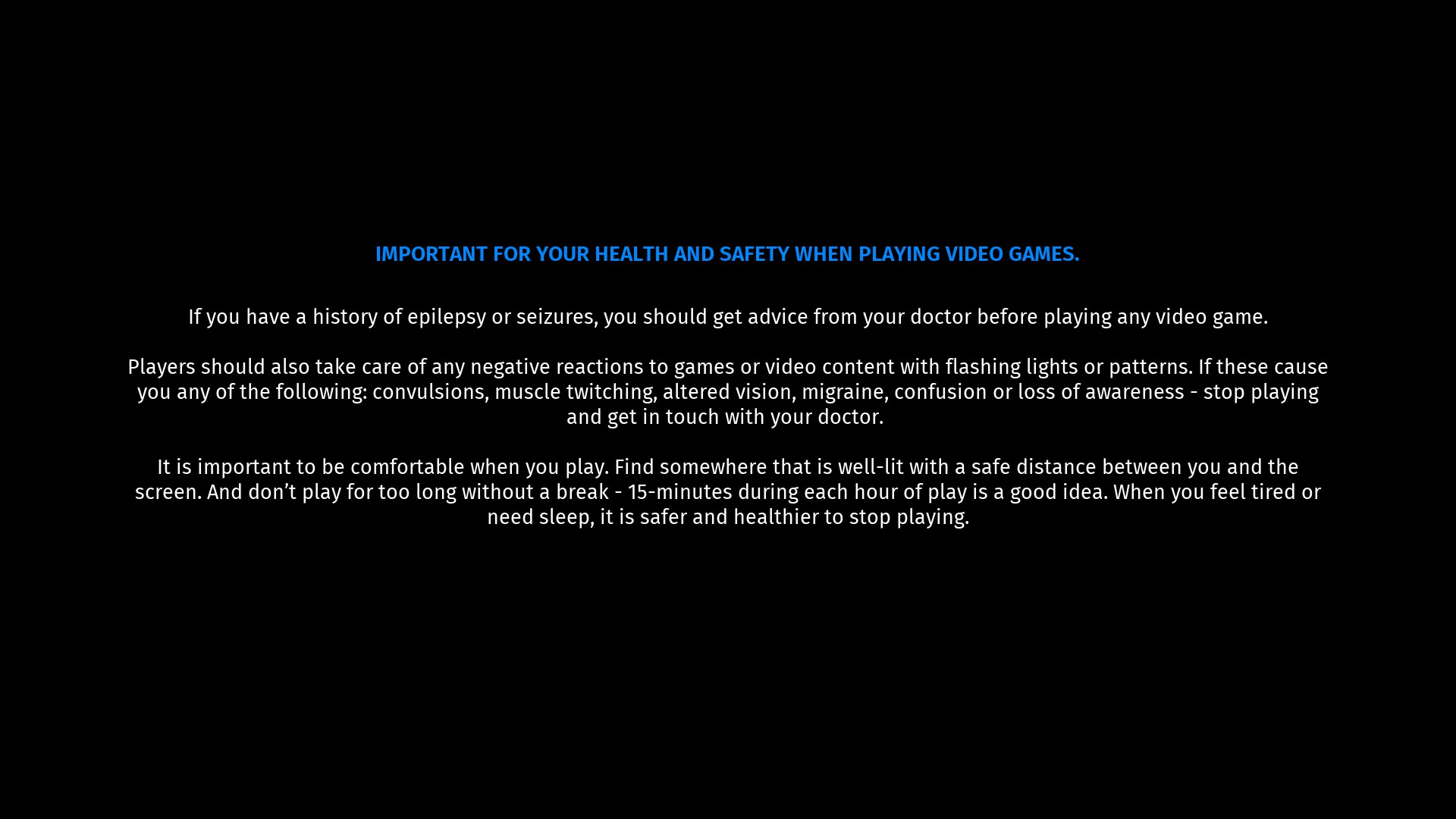
What I’ve experienced isn’t listed above. I’ve played countless first-person perspective games extensively, and, aside from a few VR titles, I never got this type of reaction out of any non-Talos game. This game triggered a severe feeling of dizziness and nausea that forced me to quit playing just about 20 minutes into the game.
The fix
Many others have complained about similar effects when playing the original game, so I attempted the solutions that our wise elders who lived ten years ago had come up with, and they worked!
It looks like this problem might come from one or the combination of any of the following:
- Motion blur
- “Vew Bobbing”, a default feature that tries to mimic realistic human head movement
- Low field of view (FOV)
- Low framerate (FPS)
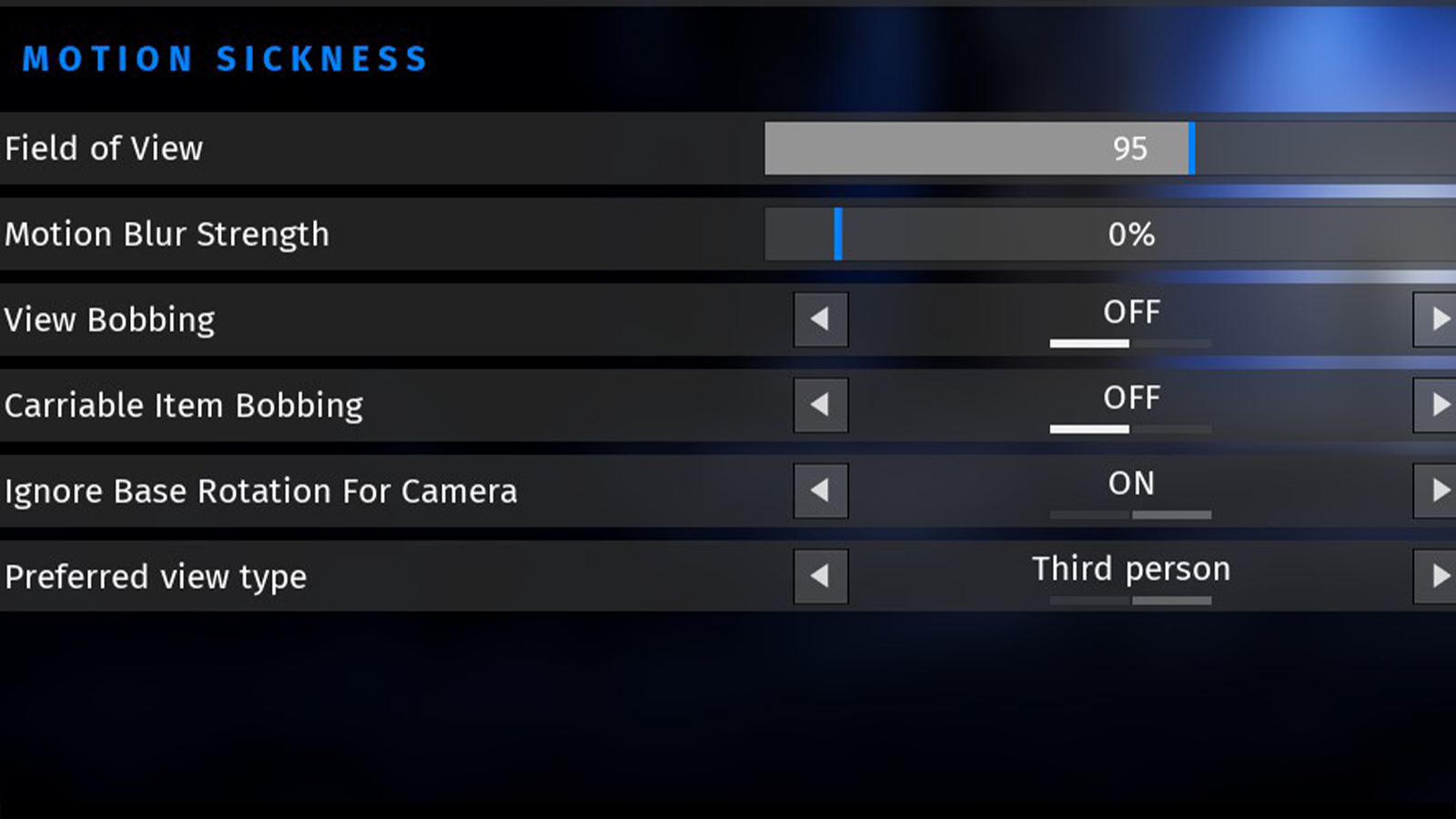
To cover most of those bases, I’d recommend you move to the aptly-titled “motion sickness” section of the options menu, and:
- Change the FOV from the native 75 to 95. That will likely help fix the issue and certainly make the game look better.
- Change motion blur from the native 1% to 0% (we’re not taking any chances. Also, motion blur is overrated and overused)
- Turn View Bobbing OFF
- Turn Carriable Item Bobbing OFF as well. I don’t know if it has anything to do with the problem, but it has the word “bobbing” in it, so off it goes.
- Ignore Base Rotation For Camera remains ON as it seemingly helps with this problem
- Lastly, I recommend you play the game in third third-person perspective. That choice did wonders for me, but I understand that many want to experience the game in the first person. If you’re a purist, consider attempting that only if all else fails.
The last important step is to raise your framerate. That naturally depends on your computer specs. So, if you aren’t lucky enough to have a gaming PC, but you’re fortunate enough to have a machine that allows you enough leverage to pick between graphics and fluidity, I recommend you lower all graphical settings required to get to 60 FPS. The settings tradeoff might sound unappealing, but I assure you that the game will still look great — and play much better.
You can now experience The Talos Principle 2 on PlayStation 4, PlayStation 5, PC, Linux, Xbox Series X|S, and MacOS.


Published: Nov 2, 2023 02:34 pm